Users can export job details to a pre-defined file from the Job Details pop-up or the main Quote window. The export file can be used by retailers to import into their DMS.
In the Job Details pop-up, the export will include current job details. In the main Quote window, the export will include details for all jobs in the quote. Note: You can only export parts and labour during a live quote.
- Click the Administration tab.
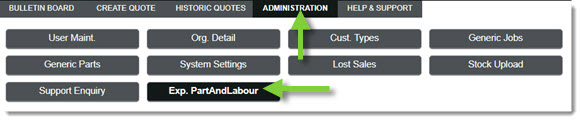
- Click the Exp. PartAndLabour tab.
- Choose the desired options from the Format section.
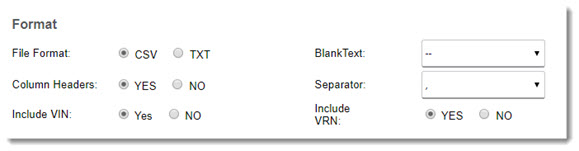
Options include:- File Format
- Column Headers
- Include VIN
- BlankText
- Separator
- Include VRN
- In the Content section, tick the box for Parts if desired.
- To show certain Parts columns, highlight the item(s) in the Available Columns box and click the > to move them to the Selected Columns box.
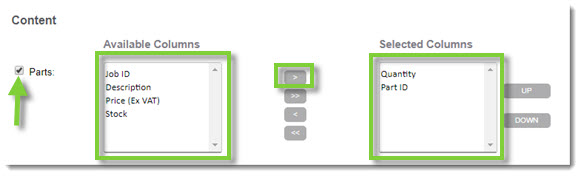
- Use the Up and Down options to organize the columns in a particular order.
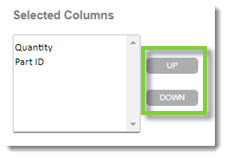
- Use the Up and Down options to organize the columns in a particular order.
- In the Content section, tick the box for Labour if desired.
- To show certain Labour columns, highlight the item(s) in the Available Columns box and click the > to move them to the Selected Columns box.
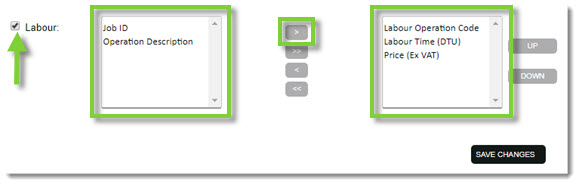
- Use the Up and Down options to organize the columns in a particular order.
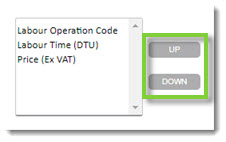
- Use the Up and Down options to organize the columns in a particular order.
- When ready, click Save Changes.
- From within an open quote, click the job detail icon.
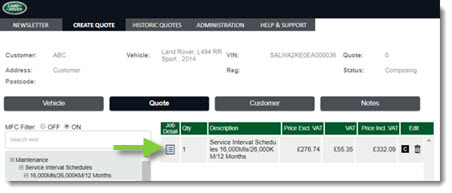
- In the Parts and Labour pop-up window, click Export.

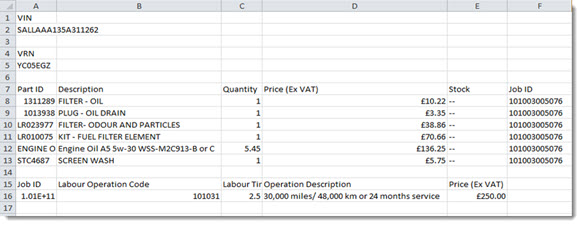
- The job details will download in the chosen file format to be saved to the local computer or DMS, for example.
KB Article #5873