Administrators can add and disable users for JLR Menu Pricing. Users can only be disabled; they cannot be removed completely.
Watch this video to learn more!
- Click the Administration tab.
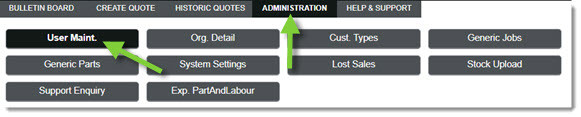
- Click the User Maint. tab.
- Note: The Administration tab defaults to the User Maint. tab.
- Click Add.

- Fill in the user's Login (User ID), Contact Name, and E-mail Address in the provided fields.
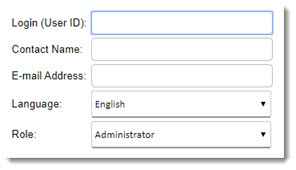
- A valid email address is required to create an account.
- Choose the appropriate Language from the drop-down menu.
- Choose the appropriate Role from the drop-down menu (Administrator or System User).
- Note: Administrator roles have access to set up and make changes to the tool, as well as create and maintain quotes. System User roles only have access to create and maintain quotes.
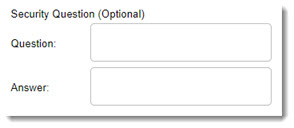
- Enter a Security Question and Answer in the provided fields to assist with resetting passwords if forgotten.
- Enter a password for the user in the Assign and Confirm fields.
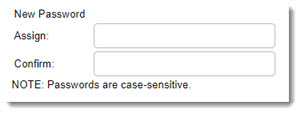
- Note: Passwords are case-sensitive.
- Passwords must:
- Be 8-20 characters long
- Include one uppercase letter, one lowercase letter, and one number
- Not match the Retailer or User ID
- Not contain any spaces or punctuation marks
- When ready, click Save.
- Click the Administration tab.
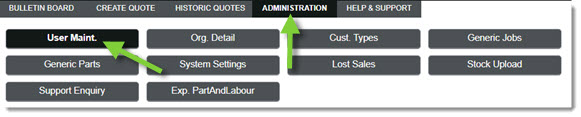
- Click the User Maint. tab.
- Note: The Administration tab defaults to the User Maint. tab.
- Click the appropriate user's name to highlight it and click Disable.

KB Article #5893