A locally produced price file is uploaded by JLR's importer markets. This file overrides the JLR Central price file. Local price files should be uploaded on a regular basis to ensure up-to-date pricing information.
Note: The Systems Settings section of the Administration tab within Menu Pricing will show when the current price file was last uploaded. A reminder message will appear at the bottom of the tab if the price file needs updated.
Uploading the Price File
To upload the local price file:
- If you don't currently have access to the price file portal of Menu Pricing, send an email to JLR Support to request access.
- OEC will provide the login credentials needed.
- Format the price file as a CSV file to be uploaded, using the guide here.
- Log in to the Menu Pricing Price File Admin Portal (https://jlr-menupricing.com/) using the login credentials provided by OEC.
- Click Browse and search for the price file.

- Click to highlight the CSV file and click Open to upload the file.

- Click Upload.

- Note: If you attempt to upload a file that is not a .CSV, the following error will display:
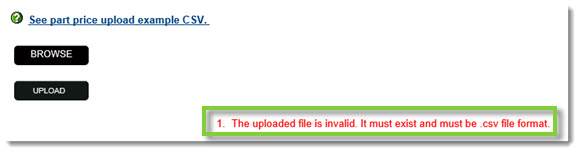
- Note: If you attempt to upload a file that is not a .CSV, the following error will display:
- A confirmation message will appear. Click OK to continue.

- The upload process will run a number of checks to confirm the file is formatted properly. Once successful, you will receive an email indicating the file has been received and uploaded successfully to Menu Pricing.

- Note: It may take 15 minutes or more for the email to arrive, depending on the size of the price file.
- If any part lines were not successful (e.g. invalid part numbers), the email will include an attachment listing any unsuccessful parts. The part lines can be updated accordingly and the file can be resubmitted following the upload process above.
- Reasons a part number may appear as invalid include:
- It is not present in Menu Pricing's central database.
- It includes spaces or special characters (e.g. /, \, -, _).
- It is more than 20 characters in length.
- Reasons a part number may appear as invalid include:
Formatting the Price File
The price file should be uploaded as a CSV file using the following format guidelines.
Format Description
| Part Number | Tax Code | Retail Price (Excluding Tax) | Retailer Cost Price (Excluding Tax) |
| Enter the JLR part number without spaces. |
- Leave blank to set standard tax rate. - Alternatively, enter 1, 2, 3, etc. as per the tax rates stated in the System Settings menu of the Menu Pricing Administration tab. (See example below.) |
Enter the retail price (customer's price) excluding tax, with two decimal places. Do not include currency signs, full stops, or commas between decimals. For example: |
Enter the cost price (retailer's purchase price or 0) excluding tax, with two decimal places. Do not include currency signs, full stops, or commas between decimals. For example: |
Tax Bands Example:
Format Example
Column headers have been removed, as they should not be included.
| ADU9028 | 847 | 599 | |
| 1125LEG | 20555 | 19999 | |
| 3845 | 4503 | 3300 | |
| 3861 | 72 | 0 |
KB Article #6834